Deploy an Application to Google Kubernetes Engine (GKE)
Official path to deploy a containerized app on GKE: create cluster, build image, deploy with kubectl or Cloud Deploy. Prerequisites and links to Google Cloud docs only.
Why GKE for the Professional Cloud Developer
Google Kubernetes Engine (GKE) is Google Cloud’s managed Kubernetes service. The Professional Cloud Developer certification expects you to understand how to deploy and run applications on GCP, including containerized workloads. GKE is the primary option when you need orchestration, multi-service architecture, or fine-grained control over scaling and networking.
This post summarizes the official Google Cloud deployment paths for GKE. All links are to Google sources only: Deploy an app to a GKE cluster, Cloud Deploy for GKE, and related docs.
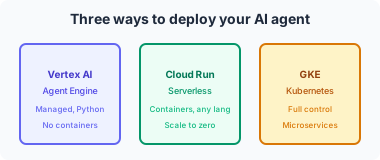
Two Main Deployment Approaches
| Approach | Best for | Tools |
|---|---|---|
| Direct GKE deployment | Learning, single cluster, simple pipelines | gcloud, kubectl, Cloud Build (optional) |
| Cloud Deploy | Multi-environment, promotion, delivery pipelines | Cloud Deploy, Skaffold, Kubernetes manifests |
Prerequisites (Official Checklist)
Before deploying to GKE you need:
- Google Cloud project with billing enabled.
- APIs enabled:
- Kubernetes Engine
- Artifact Registry (for container images)
- Cloud Build (if you build images in GCP)
For Cloud Deploy: Cloud Deploy quickstart lists the exact APIs.
- IAM: At least sufficient permissions to create clusters and deploy (e.g. Kubernetes Engine Developer or similar; see GKE access control).
- A container image — In Artifact Registry or another registry GKE can pull from.
- Kubernetes manifests — Deployment, Service, and optionally Ingress or ConfigMaps/Secrets.
Path 1: Deploy an App to a GKE Cluster (Direct)
Official doc: Deploy an app to a GKE cluster.
High-level steps:
- Create a GKE cluster (e.g. with
gcloud container clusters createor the console). - Get credentials for
kubectl:
gcloud container clusters get-credentials CLUSTER_NAME --region REGION - Build and push your container image to Artifact Registry (or use a public image).
- Deploy using
kubectl applywith your Deployment and Service YAML (or use a Helm chart if your org uses Helm). - Expose the app (e.g. LoadBalancer Service or Ingress) and verify.
The same doc covers deploying a sample app and rolling updates. For “create and deploy a containerized web app” in one flow, see also Cloud Shell: Deploy GKE app (Google Cloud).
Path 2: Deploy with Cloud Deploy (Pipeline)
When you want repeatable pipelines and promotion (e.g. dev → staging → prod):
- Quickstart: Deploy an app to GKE using Cloud Deploy.
- You define delivery pipelines, targets (GKE clusters), and Skaffold configuration so Cloud Deploy can render manifests and deploy.
- Skaffold is used to build images and apply Kubernetes manifests; the quickstart walks you through the required config.
Key Concepts for the Exam
- Cluster — Control plane + node pool(s); you manage workloads, Google manages the control plane.
- Deployment — Declarative way to run a set of Pods (replicas, image, env, resources).
- Service — Stable network endpoint (ClusterIP, LoadBalancer, NodePort) for Pods.
- Image registry — Artifact Registry is the recommended place to store container images used by GKE.
- Rollouts — Rolling updates, rollback; both
kubectland Cloud Deploy support them.
Where to Practice
- GKE docs — Deploy workloads: Deploying workloads.
- Cloud Deploy: Deploying an application — overview of deploying to GKE and other targets.
- Cloud Shell — Preconfigured environment; Cloud Shell includes options to open a sample and deploy to GKE.
References (Google sources only)
- Deploy an app to a GKE cluster — Kubernetes Engine | Google Cloud Documentation
- Quickstart: Deploy an app to GKE using Cloud Deploy — Google Cloud Documentation
- Deploying workloads (GKE) — Google Cloud Documentation
- Deploying an application (Cloud Deploy) — Google Cloud Documentation
- Cloud Shell — Deploy GKE app — Google Cloud