Create Shareable Gen AI Apps in Under 60 Seconds with Vertex AI and Cloud Run
Turn a Vertex AI Studio prompt into a live web app with one click. Official Google Cloud workflow: Deploy as App to Cloud Run — no Docker or server setup.
From Prompt to Live App in One Click
Building a shareable generative AI app usually means wiring APIs, hosting, and a front end. Google Cloud’s Vertex AI and Cloud Run team up so you can go from a prompt in Vertex AI Studio to a live, shareable web app in under a minute — with no manual Docker or server setup.
This post is based on the official Google Cloud blog: Create shareable generative AI apps in less than 60 seconds with Vertex AI and Cloud Run (May 2025). All links and steps point to Google sources only.
The Problem This Solves
In Vertex AI Studio you can:
- Experiment with models and parameters
- Refine system instructions and examples
- Get exactly the prompt you want
But sharing that as an interactive app usually means:
- Exporting code
- Setting up hosting and APIs
- Building a UI
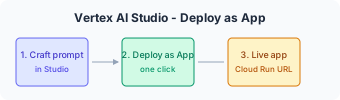
The “Deploy as App” flow removes that gap: your prompt becomes a Gradio-based web app running on Cloud Run.
The Official Workflow (Step by Step)
1. Craft your prompt in Vertex AI Studio
- Open Vertex AI Studio in the Google Cloud Console.
- Use the familiar interface: system instructions, examples, model and parameter tuning.
- Test until the behavior matches what you want to share.
2. Click “Deploy as App”
- Use the clear, primary “Deploy as App” action (no guessing which button to use).
- This is the direct path from “prompt ready” to “app live.”
3. Configure deployment
- Choose authentication:
- Public — anyone with the link can use the app.
- Authenticated — only signed-in users (e.g. your org) can access.
- Click “Deploy application.”
4. Let Vertex AI and Cloud Run do the rest
- Vertex AI packages your prompt and builds the interactive UI (powered by Gradio).
- Cloud Run builds and hosts the app on fully managed infrastructure.
- You see real-time status in the console.
5. Share and iterate
- When deployment finishes, you get a direct URL to the live app.
- Share it with colleagues, stakeholders, or testers.
- To change behavior: edit the prompt in Vertex AI Studio and redeploy; no need to touch code unless you want to.
Why Cloud Run Fits This Use Case
From the same official post:
- Automatic scaling — including scale to zero when idle (good for demos and internal tools).
- No infrastructure to manage — no servers or clusters to operate.
- Customization path — for production, you can edit the app code in Cloud Run’s source editor, download it, or use git integration and your own IDE.
So: fast path for “shareable prototype,” and a clear path to “production app” when you’re ready.
When to Use This
| Use case | Fit |
|---|---|
| Quick prototype or demo | ✅ Ideal |
| Internal tool or stakeholder demo | ✅ Ideal |
| Production app with custom UI/logic | ✅ Start here, then customize in Cloud Run or your repo |
Try It Yourself (Official Links)
-
Vertex AI Studio
console.cloud.google.com/vertex-ai/studio
Look for the “Deploy as App” button after you’ve set up your prompt. -
Nano Banana 2 (image generation)
Try Nano Banana 2 in Vertex AI Studio — example of a multimodal use case you can deploy as an app. -
Cloud Run docs
cloud.google.com/run — for customizing and taking the app to production.
References (Google sources only)
- Create shareable generative AI apps in less than 60 seconds with Vertex AI and Cloud Run — Google Cloud Blog, AI & Machine Learning, May 30, 2025
- Vertex AI — Google Cloud
- Cloud Run — Google Cloud
- Gradio — Referenced by Google as the UI framework used for the generated app